It rolls the dice and shows your number.
Arduino
The brain
Loading part…
variables plus random for dice
Roll a die 1–6 with random() stored in a variable when you press a button.
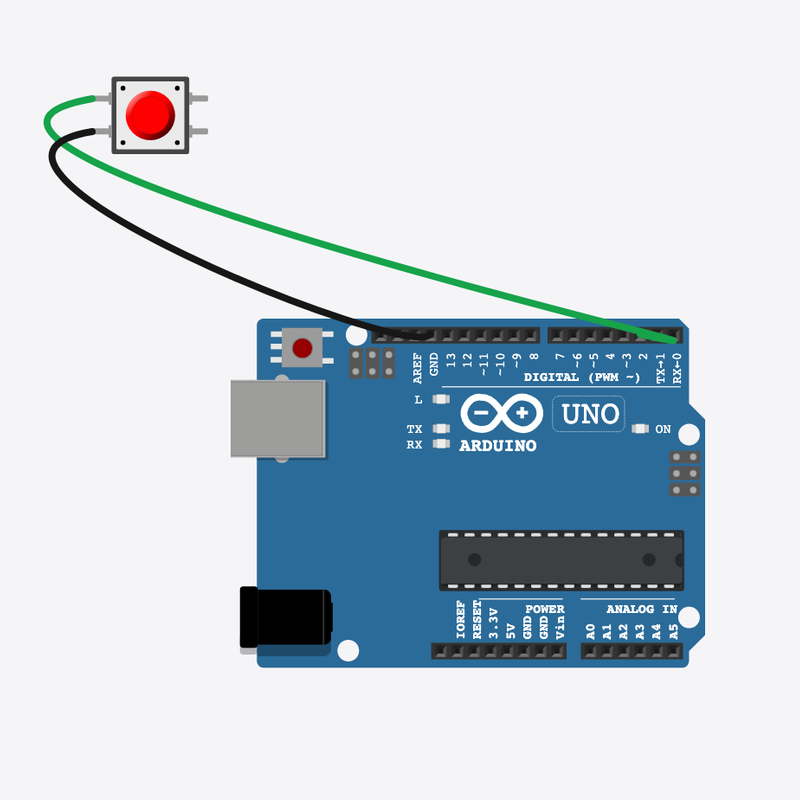
Pin connections
| Part 1 | Part 2 | |
|---|---|---|
Pushbutton pin 1 | → | Arduino pin 2 |
Pushbutton pin 2 | → | Arduino GND |
Roll the dice!
Press the button and get a surprise number from 1 to 6 — a different roll every time.
Board games and dice apps pick a surprise number and remember it, just like this.
The problem
We want a dice number that only changes when the player decides to roll.
Think of it like
It's like shaking a dice cup — the number stays the same until you roll again.
It rolls the dice and shows your number.
Arduino
The brain
Did you press to roll?
Nothing changes until you press — lastRoll keeps its old number.
if (digitalRead(BUTTON_PIN) == LOW)
Pick a dice number
random(1, 7) gives 1 to 6 — and we save it in lastRoll until the next roll.
lastRoll = random(1, 7);
Show the roll
Show the saved number, wait for you to let go, then watch for the next roll.
Serial.print("You rolled: ");
Serial.println(lastRoll);
Then loop back to step 1
Follow these steps in order. Match the wires to the colors shown.
Place Arduino
Place the Arduino (uno) on the breadboard.
Arduino placed — ready to roll!
The lastRoll box
const int BUTTON_PIN = 2;
int lastRoll = 1;
lastRoll remembers your most recent dice number between presses.
Get ready and shake it up
  pinMode(BUTTON_PIN, INPUT_PULLUP);
  Serial.begin(9600);
  randomSeed(analogRead(0));
  Serial.println("Dice — press button to roll");
}
setup() sets up the button, opens the screen, and shakes up the picker for fair rolls.
Roll on press
    lastRoll = random(1, 7);
    Serial.print("You rolled: ");
    Serial.println(lastRoll);
    while (digitalRead(BUTTON_PIN) == LOW) {
      delay(20);
    }
    delay(200);
  }
  delay(20);
}
Press → pick 1 to 6 → save in lastRoll → show it → wait for the next press.
const int BUTTON_PIN = 2;
int lastRoll = 1;
void setup() {
  pinMode(BUTTON_PIN, INPUT_PULLUP);
  Serial.begin(9600);
  randomSeed(analogRead(0));
  Serial.println("Dice — press button to roll");
}
void loop() {
  if (digitalRead(BUTTON_PIN) == LOW) {
    lastRoll = random(1, 7);
    Serial.print("You rolled: ");
    Serial.println(lastRoll);
    while (digitalRead(BUTTON_PIN) == LOW) {
      delay(20);
    }
    delay(200);
  }
  delay(20);
}
Q1. What is a variable?
Q2. What does random(1, 7) give?
Pretend the last roll was 6 — change int lastRoll = 1 to int lastRoll = 6.
Hint: Line 2.
Add a note (comment) on the lastRoll line that says "new die face".
Hint: Line 13.
A line-by-line tour of the sketch — the same steps as in Robot Gurukul Studio.
Program overview
Big idea
Every Arduino program has a top part, a setup() part that runs once, and a loop() part that runs again and again.
In this project
Press a button to roll a dice and get a surprise number from 1 to 6.
Tip
Read from the top to the bottom. Tap any word or line if you need help!
const int BUTTON_PIN = 2;
int lastRoll = 1;
setup()
Big idea
setup() runs one time when the board turns on.
In this project
It gets the button on pin 2 ready, opens the message screen, and shakes up the dice picker.
Why here
Things we do only once go inside setup().
void setup() {
  pinMode(BUTTON_PIN, INPUT_PULLUP);
  Serial.begin(9600);
  randomSeed(analogRead(0));
  Serial.println("Dice — press button to roll");
}
loop()
Big idea
loop() runs again and again, forever.
In this project
This is where we watch for the button and roll the dice.
Why here
Things that repeat go inside loop().
void loop() {
  if (digitalRead(BUTTON_PIN) == LOW) {
    lastRoll = random(1, 7);
    Serial.print("You rolled: ");
    Serial.println(lastRoll);
    while (digitalRead(BUTTON_PIN) == LOW) {
      delay(20);
    }
    delay(200);
  }
  delay(20);
}
Try this: Change a number inside loop(), then press Run to see what happens.
pinMode
Big idea
pinMode tells a pin if it will listen or push power out.
In this project
It sets pin 2 to listen for the button press.
Why here
It goes in setup() because we only set it once.
pinMode(BUTTON_PIN, INPUT_PULLUP);
digitalRead
Big idea
digitalRead checks if a pin is ON or OFF.
In this project
It checks if you pressed the roll button.
Why here
It goes in loop() so we can react the moment you press.
if (digitalRead(BUTTON_PIN) == LOW) {analogRead
Big idea
analogRead reads a number from a pin, from 0 up to 1023.
In this project
It reads a wobbly, empty pin to help make the rolls fair.
Why here
It goes in setup() to shake up the dice picker.
randomSeed(analogRead(0));
delay
Big idea
delay means wait. Nothing else happens while it waits.
In this project
A tiny wait helps the button read cleanly.
Why here
Right after we check the button.
delay(20);
random
Big idea
random() picks a number between two values, just like rolling a dice.
In this project
It picks a number from 1 to 6.
Why here
In loop() so each roll is a surprise.
lastRoll = random(1, 7);
begin
Big idea
Serial.begin opens a message screen so the board can talk to the computer.
In this project
It lets us print your roll.
Why here
It goes in setup() once, before we print anything.
Serial.begin(9600);
Big idea
Serial.print writes words or a number on the screen and stays on the same line.
In this project
It writes "You rolled: " right before the number.
Why here
In loop() so we can see your roll.
Serial.print("You rolled: ");println
Big idea
Serial.println writes on the screen and then jumps to a new line.
In this project
It prints a friendly hello when the board turns on.
Why here
So each message gets its own line.
Serial.println("Dice — press button to roll");